Overview
If you are seeing a “Connection Not Private” or certificate warning in your browser, it usually means your device does not trust the CloudVeil filtering certificate.
This prevents websites from loading properly.
When this happens
You may see messages like:
- “Your connection is not private”
- “This certificate is not trusted”
- Security warnings when visiting websites
Step 1: Open Keychain Access
- Click the Search icon in the top-right corner (near the clock), or press Command (⌘) + Space
- Type Keychain Access
- Open Keychain Access
Step 2: Find the CloudVeil Certificate
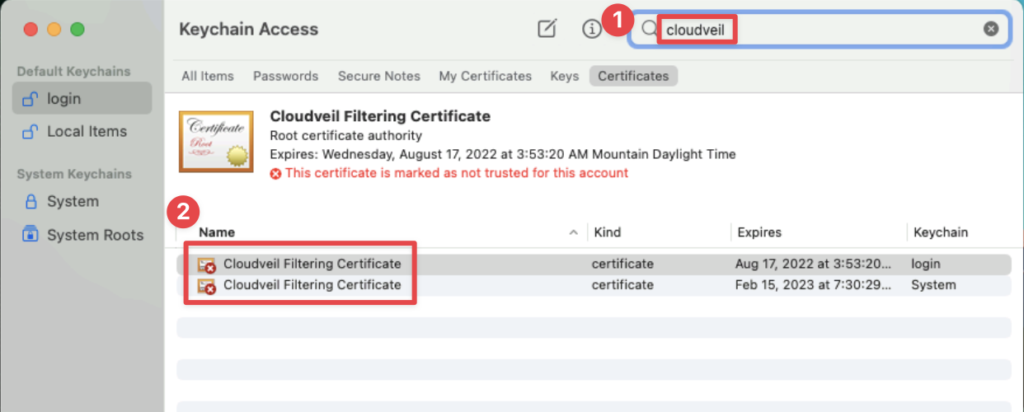
- In the search bar (top right), type:
cloudveil - Locate the
CloudVeil Filtering Certificate
Step 3: Trust the Certificate
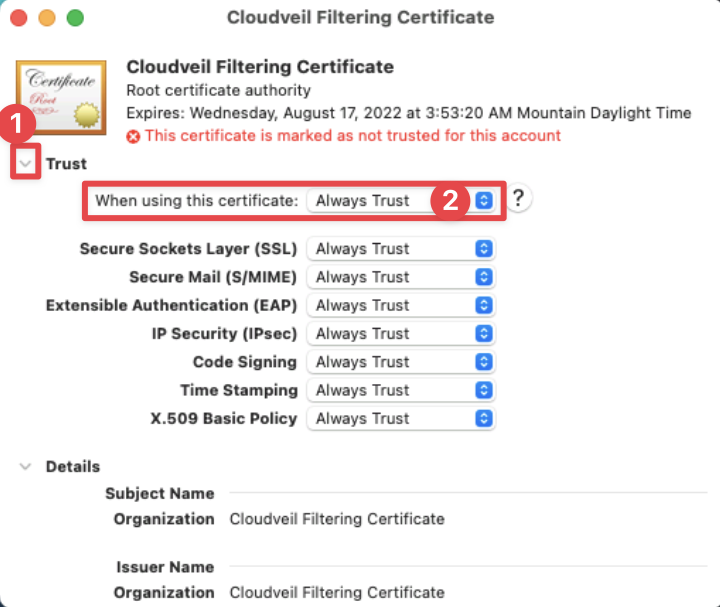
- Double-click the
CloudVeil Filtering Certificate - Expand the
Trustsection - Set
When using this certificateto:Always Trust - Close the window
- Enter your Mac password when prompted
- Repeat these steps for any
CloudVeil Filtering Certificateshowing (login and system)
Step 4: Restart Your Browser
Close your browser completely, then reopen it.
Result
Websites should now load normally without “Connection Not Private” errors.
Still Having Issues?
- Restart your Mac
- Make sure the certificate shows as trusted (blue “+” icon)
- Contact support if the issue continues
 WhatsApp
 CloudVeil Messenger